

AI agent instructions
AI agent instructions
Okta Verify push cannot be automated. Approval happens on an enrolled physical device, and the
enrollment QR carries a one-time activation token rather than a shared secret. Use a TOTP
authenticator instead, as described below.
Prerequisites
- Admin access to your Okta org
- The Notte CLI installed and authenticated with
notte auth login - A coding assistant such as Claude Code, with the Notte skill installed via
notte skill add
Set up the Okta side
1
Create a service account
In the Okta Admin Console, go to Directory then People and add a user for the automation,
for example
agent-svc@yourcompany.com.2
Enable Google Authenticator
Go to Security then Authenticators, click Add authenticator, and add Google
Authenticator. It registers as a possession factor.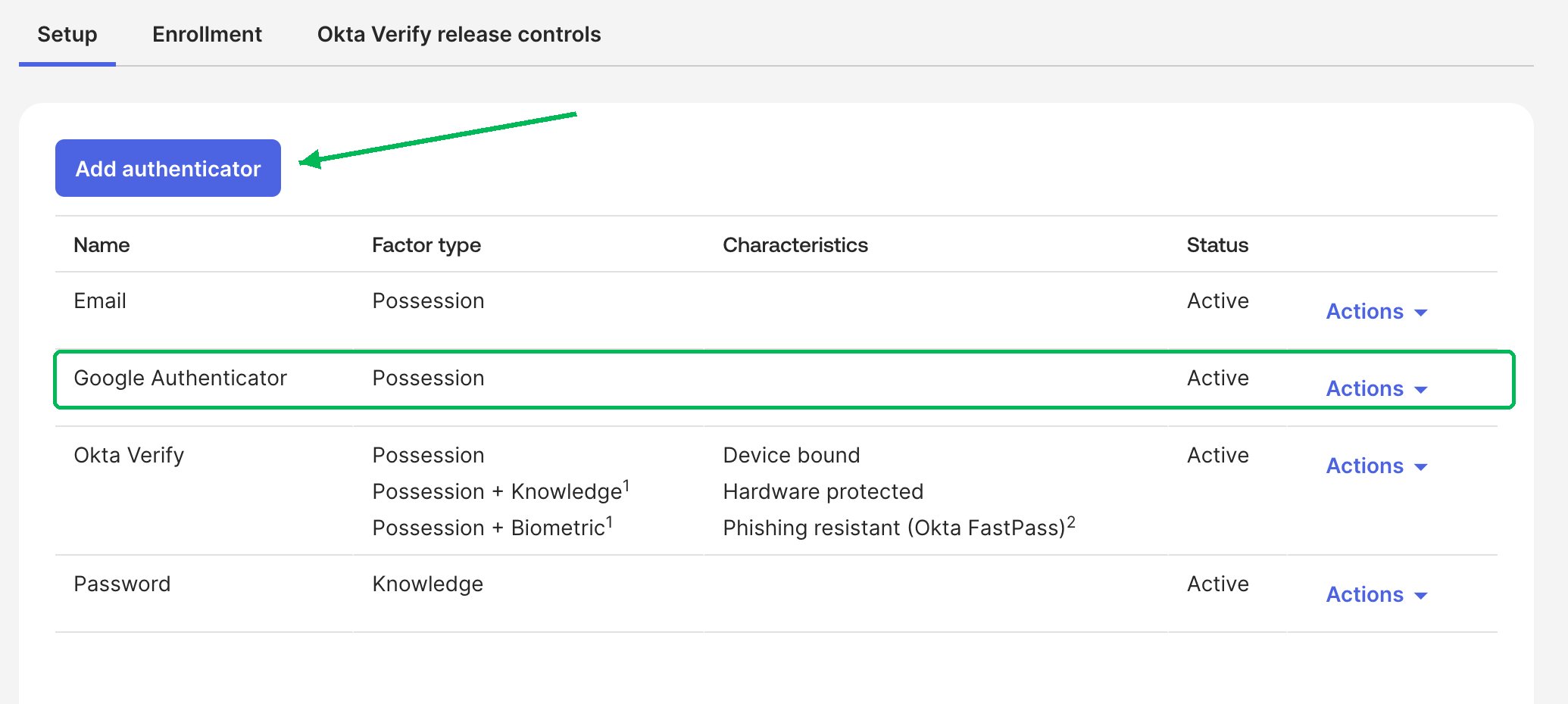
3
Enroll and reveal the secret
Sign in as the service account, open its end-user settings, and set up Google Authenticator. On
the QR screen, click Can’t scan? to reveal the base32 secret.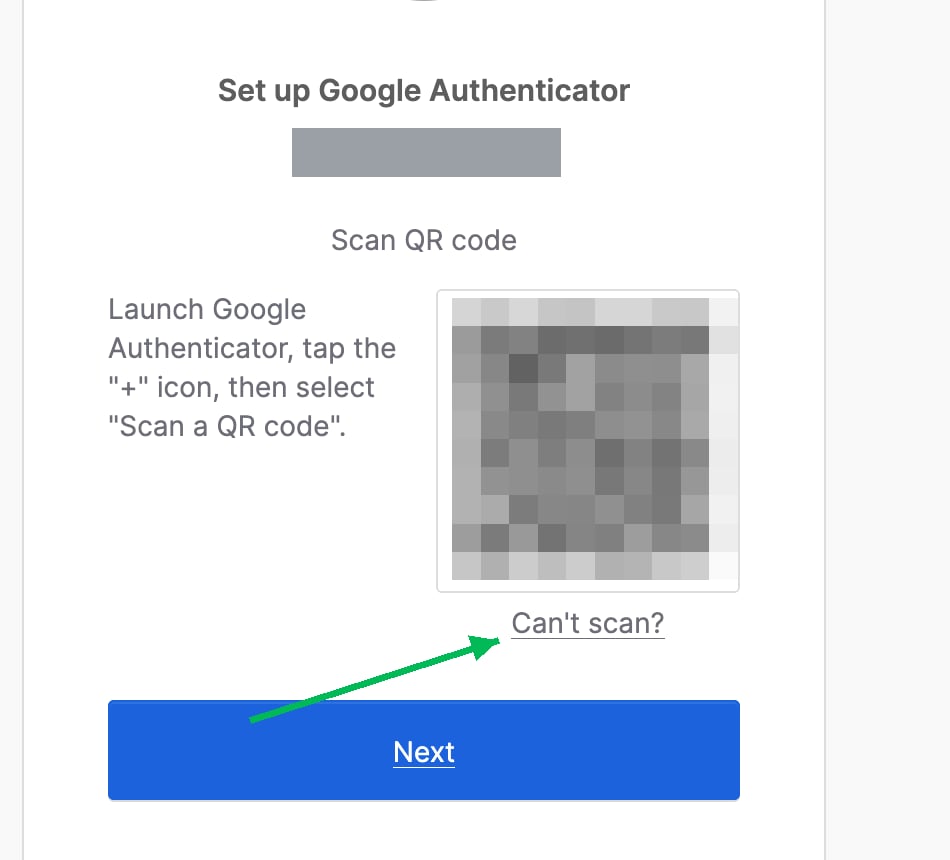
mfa-secret in the next step.Set up the Notte side
1
Store the credentials in a Vault
Create a vault and add the Okta credentials. Keep the Credentials are encrypted at rest and never reach the model. Notte substitutes the real values
into the page only at fill time, and generates the one-time code from the stored secret.
vault_id it returns.2
Start a session
Create a profile so the signed-in state can be saved, then start a session with both attached.
3
Let your coding assistant drive the sign-in
With the Notte CLI and skill installed, ask Claude Code to walk the flow in plain language:It drives the browser with
notte page goto, notte page observe, notte page click and
notte page fill, checking the page between actions. See
Claude Code & AI Agents for the full loop.4
Confirm it worked
/app/UserHome. You can also download the recording with
notte sessions replay --session-id <session-id>.Result
The agent fills the username, picks Google Authenticator from the security method list, enters a code generated from the stored secret, submits the password, and lands on the dashboard. No device and no person in the loop.
Session replay at 8x speed. Account identifiers are masked.
Reuse the signed-in state
With--profile-persist, the browser state is written back when the session closes, so the Okta
domain carries its cookies into the next session that attaches the same profile. See
Browser Profiles for how to reuse and refresh that state.